
Features
What Connect POS does, screen by screen.
Connect POS covers the daily jobs of a small shop or café: selling, taking payment, keeping stock right and closing the till. Every screen below is the real product, shown with a sample shop.
Selling
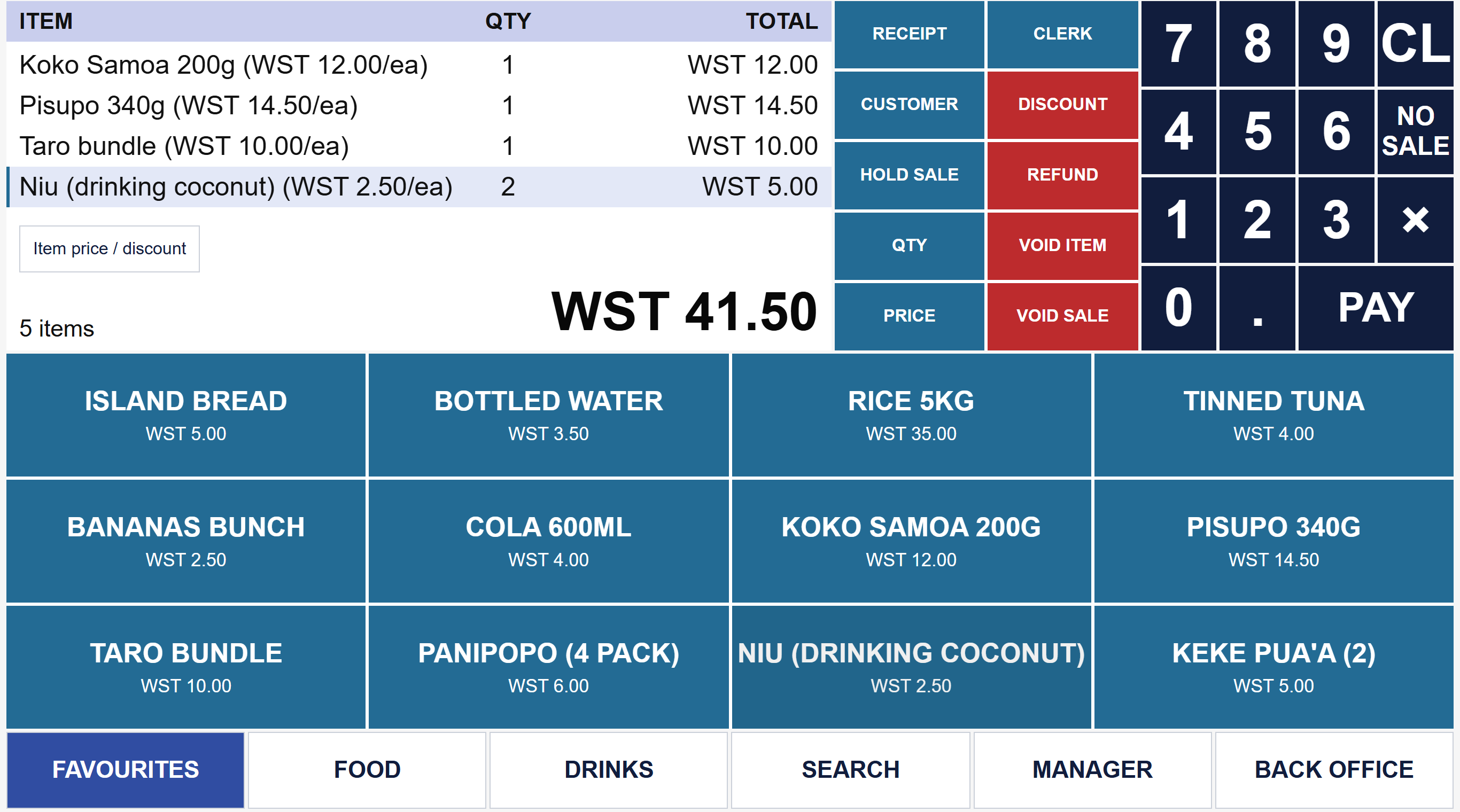
A touch till with big buttons and a familiar layout.
The basket sits top left, the big product buttons sit below, and the number pad and PAY key sit on the right. It follows the classic till layout, so staff who have used a cash register will find their way quickly.
- Quick buttons for your best sellers, grouped by department
- Scan a barcode, or search by name
- Hold a sale, serve the next customer, then recall it
- Change a quantity or void a line with one tap
- Discounts, returns and voiding a whole sale need a manager PIN
- Item options such as size, milk or extra coconut cream, with the price updated on screen
- A layout editor so you can move, resize and recolour buttons yourself
Payments
Record every kind of payment, so the drawer adds up.
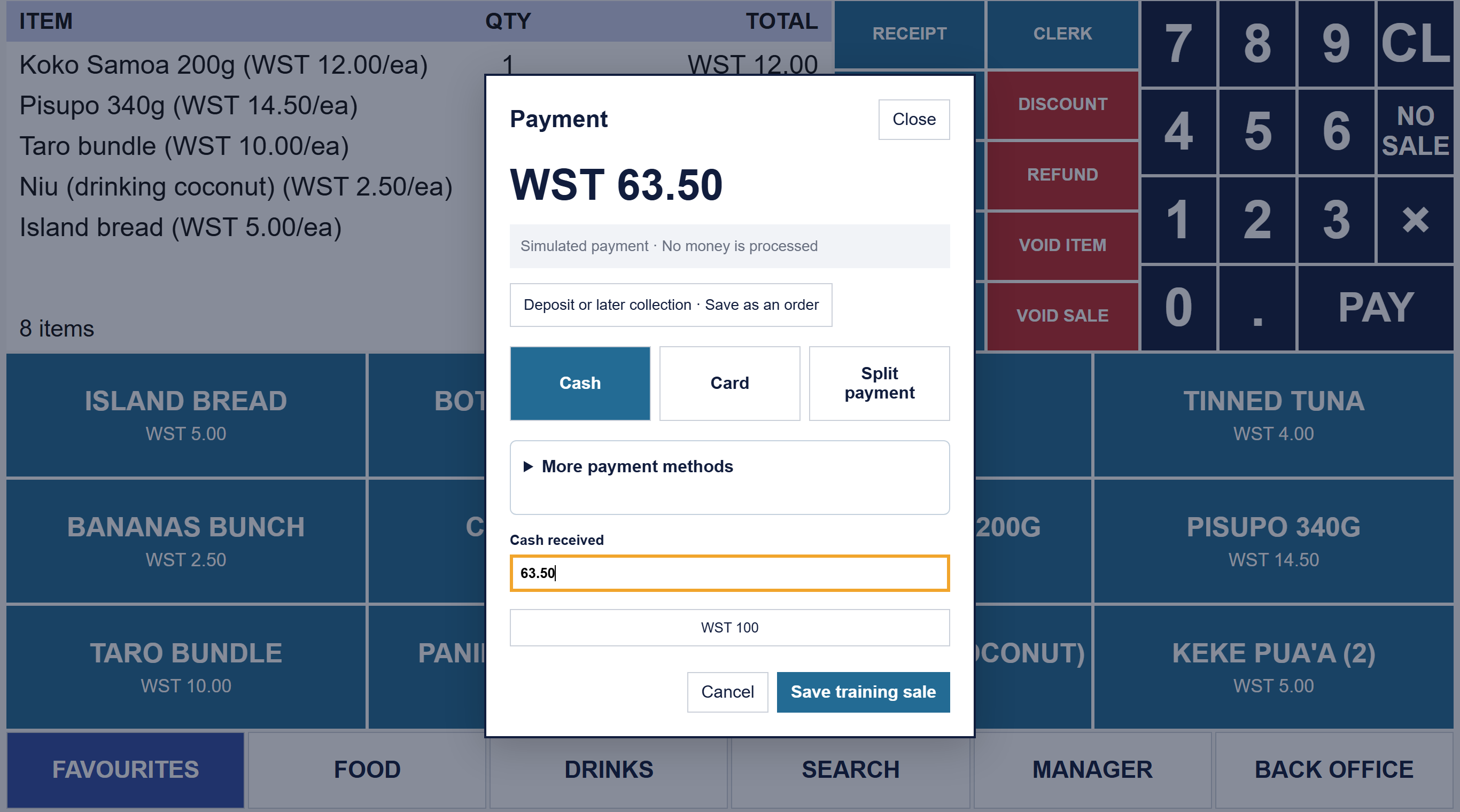
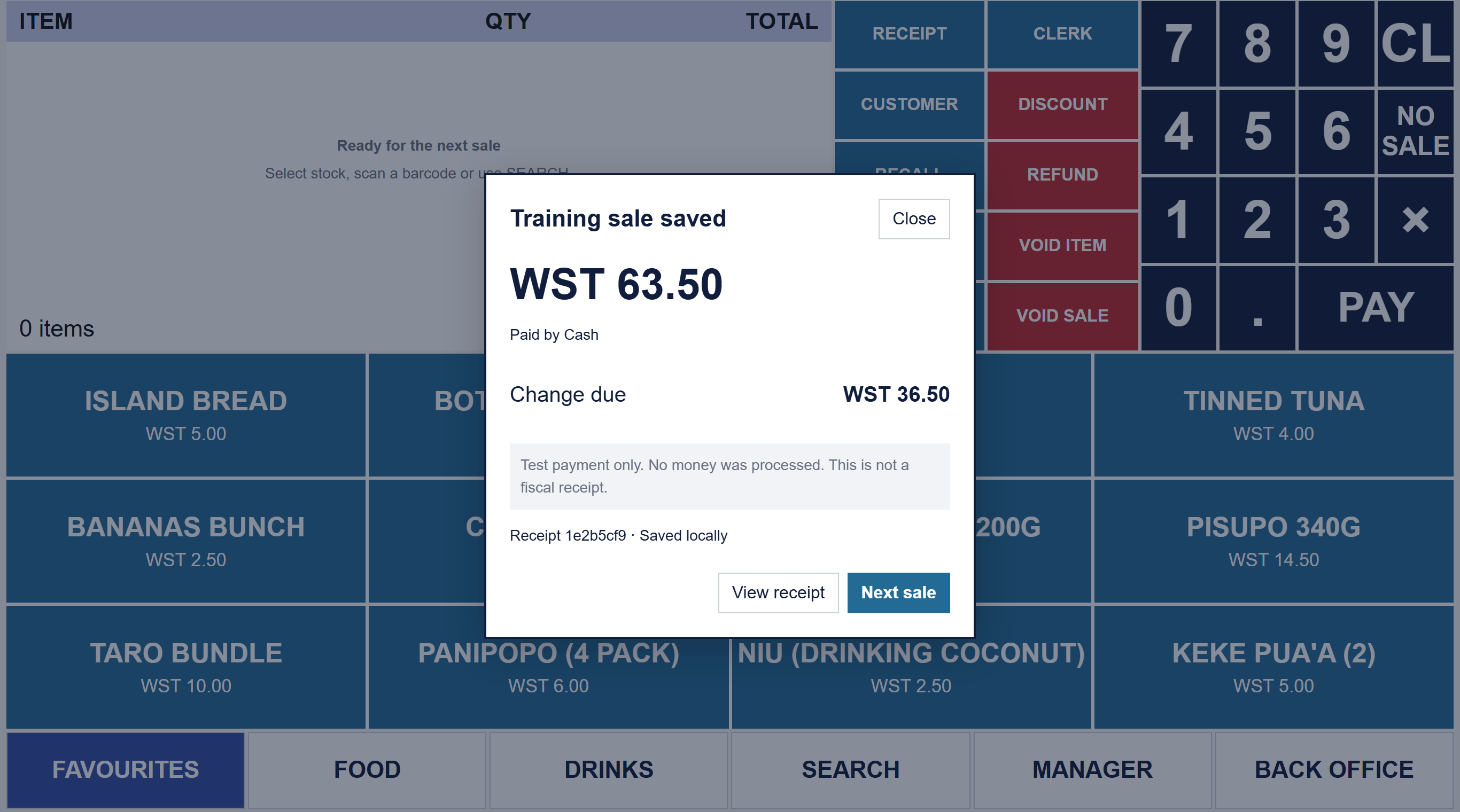
Choose how the customer paid, enter the cash they handed over, and Connect POS shows the change. Split a sale across up to seven payment types when you need to.
- Cash, card, bank transfer, mobile money, cheque, voucher and other
- Split payments, such as part cash and part card
- Only real cash counts towards the cash drawer
- Refunds start from the original receipt, so nobody refunds more than was paid
- Customer orders with a deposit and a balance paid later (Shop and Hospitality plans)
Good to know: Connect POS records card and mobile money payments. It does not connect to an EFTPOS terminal yet, so the card machine stays separate for now. See what is coming.
Stock
Know what is on the shelf before the customer asks.
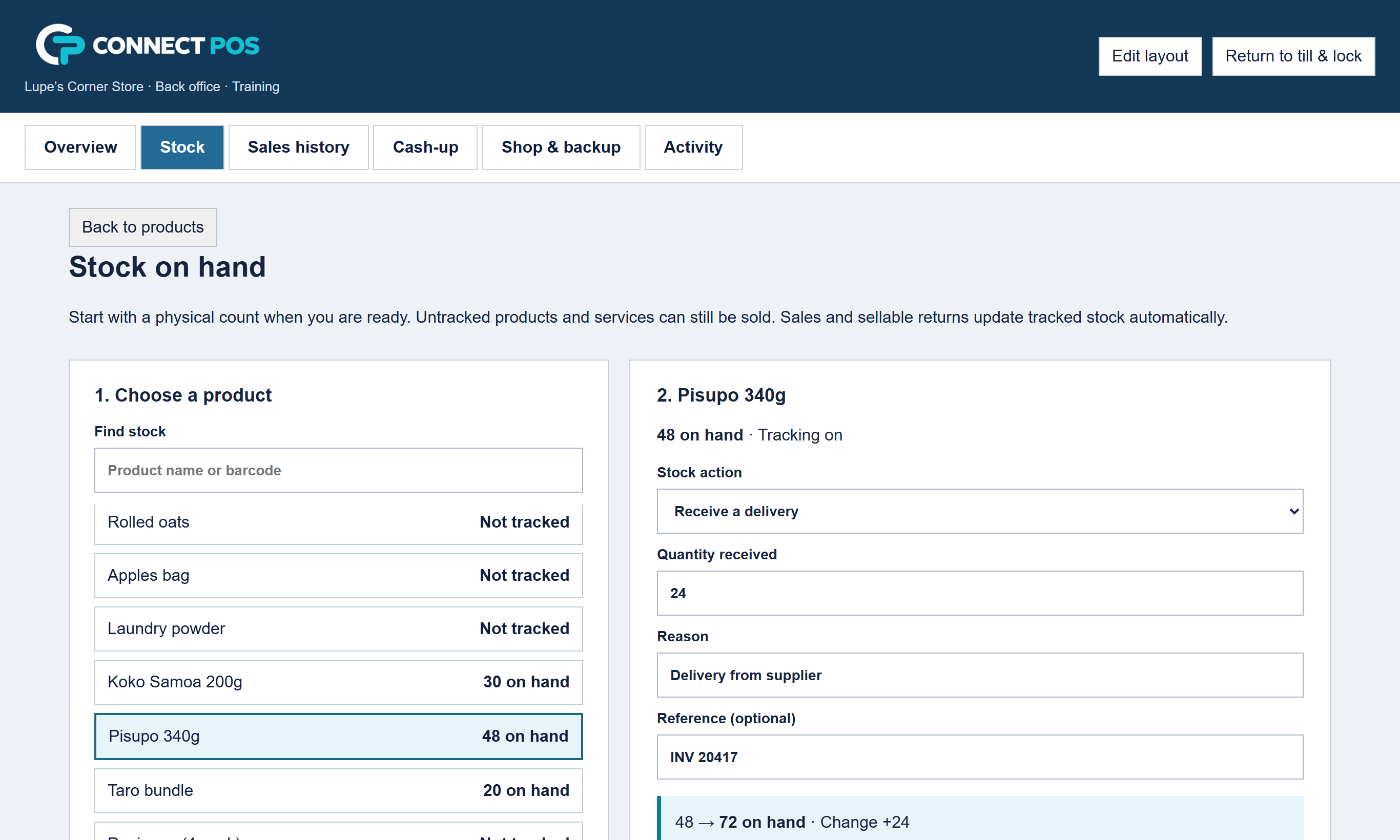
Add your products one by one, or bring them in from a spreadsheet. On the Shop and Hospitality plans, track stock on hand for the items that matter, and leave the rest alone.
- Product names, prices, barcodes and departments
- Import and export a CSV file (save Excel as CSV)
- Receive supplier deliveries with the invoice number
- Stock counts that correct the number on hand
- A movement history for every stock change
- Archive old products without losing their sales history
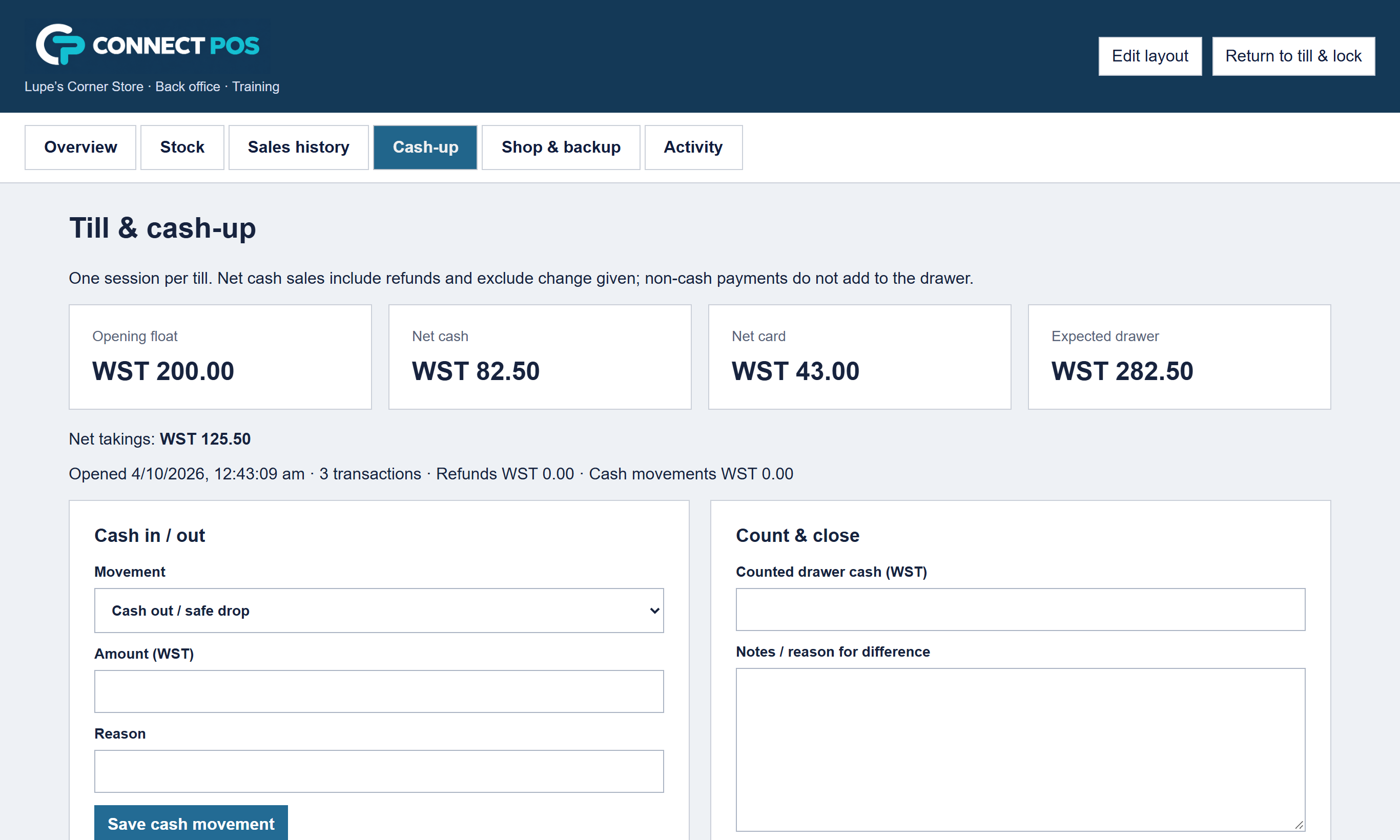
Cash-up
Close the day knowing the numbers are right.
Start each day with your float. Record cash taken out for the bank or put in for change. At closing, count the drawer and Connect POS shows what should be there.
- Opening float, cash in and cash out, each with a reason
- Takings by payment type
- Counted cash next to expected cash, with the difference explained
- A held or unfinished sale must be cleared before you close
- Every closed day saved, with a CSV export
Kitchen and tables
From the counter to the kitchen to the table.
For cafés, takeaways and restaurants on the Hospitality plan. Orders go to a kitchen screen on a second tablet, and restaurants can run tables with one bill per table.
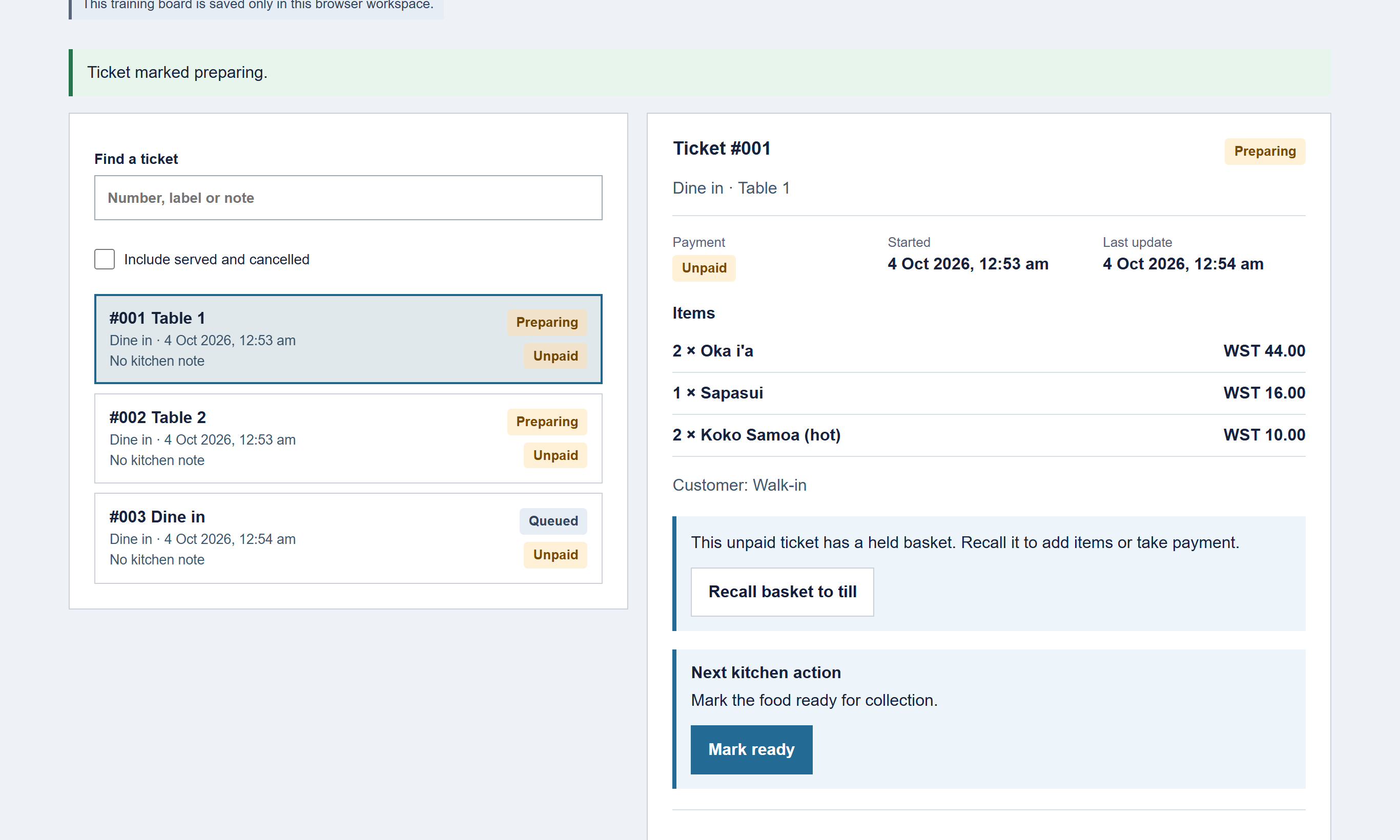
- Send & hold starts the food before payment; Pay & send takes payment and sends in one step
- Takeaway, dine-in or pickup, with a name or number and a kitchen note
- Changing an order that was already sent needs a reason and a manager
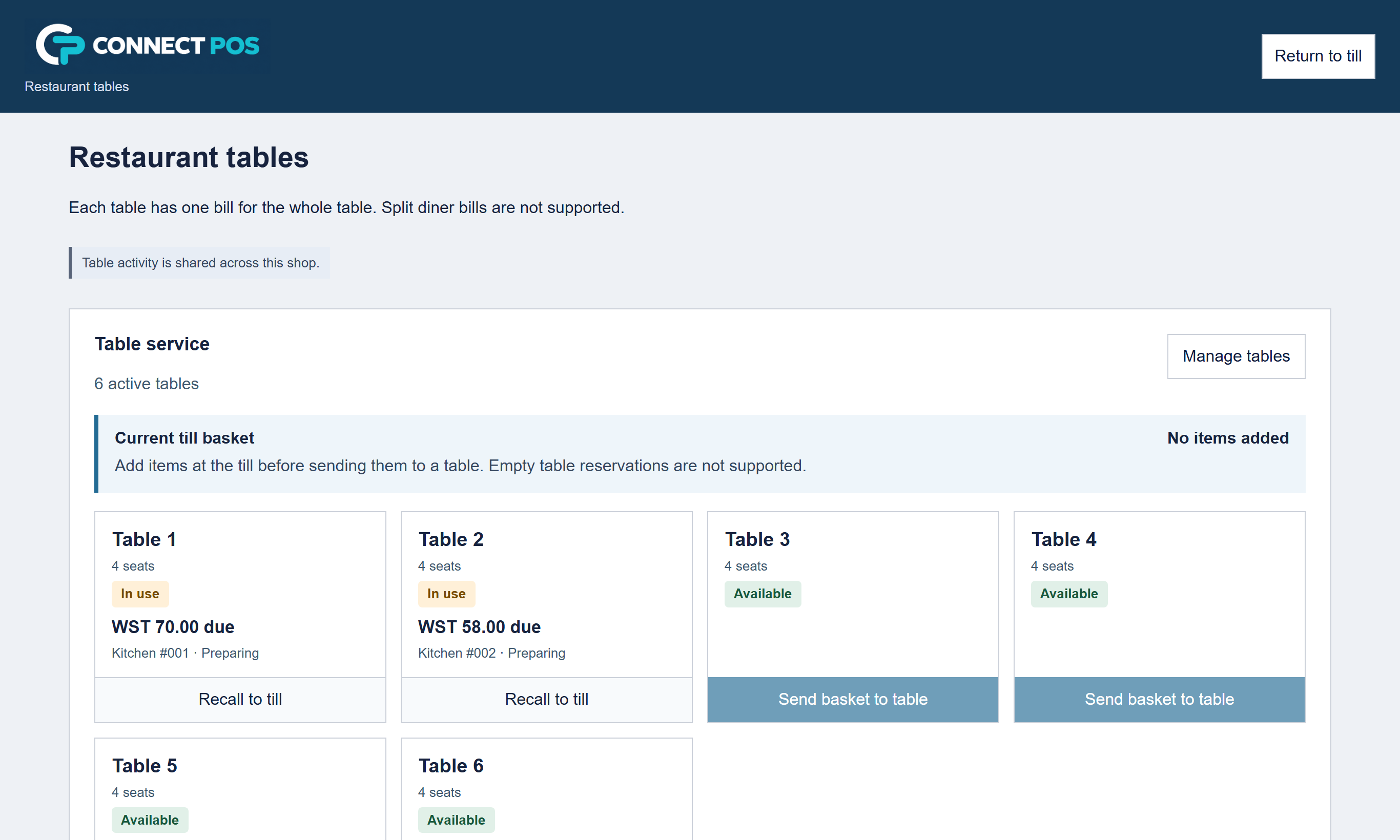
- Name your tables and set the seats
- Send a basket to a table, recall it to add more, and pay the whole table
- Move a group to another table, and the bill and kitchen ticket move too
The kitchen screen runs on a tablet or screen. Printing tickets on a kitchen printer is not included yet. Splitting one table's bill between diners is planned.
Staff, setup and safety
You stay in charge of the shop.
Staff PINs
Each person signs in with their own PIN. Choose who can give discounts, do refunds or see the back office.
Manager approval
Discounts, returns and voided sales ask for a manager PIN, and approved discounts and returns are saved in the activity log.
Guided setup
Seven short steps: your business type, shop details, products, till buttons, staff, opening float and a practice sale. Each step saves as you go.
Practice shop day
Staff can practise a full day on a copy of your products and till buttons. Practice sales never touch your real receipts, stock or cash-up.
Equipment checks
A short checklist for your receipt printer, barcode scanner, cash drawer and kitchen screen. You try each one and tick it off before opening.
Encrypted backups
Your shop's records are kept on our cloud server and backed up in encrypted form. Each shop's records are kept separate from every other shop.
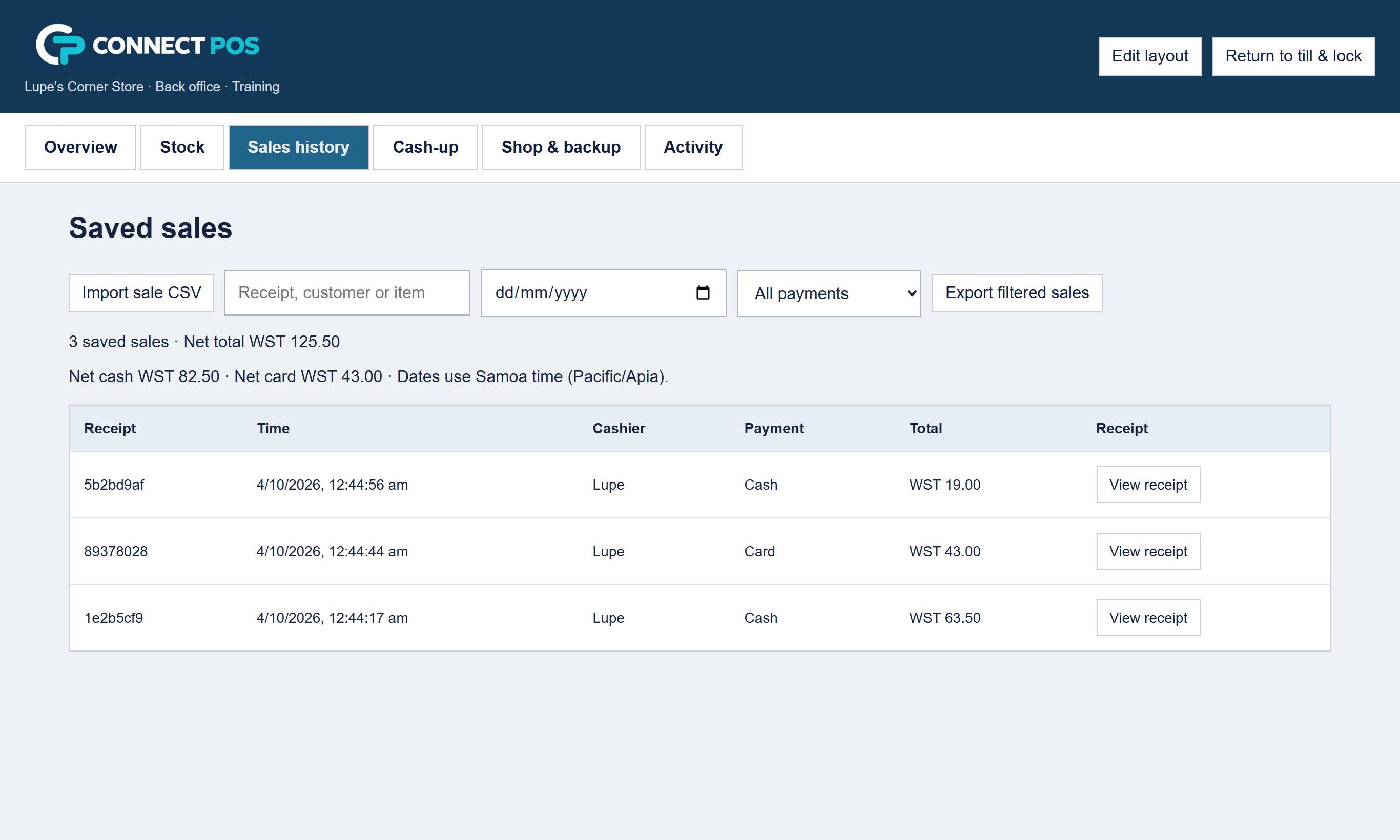
Sales and receipts
Find any sale, any day.
Every completed sale is saved with its items, prices, cashier and payment. Look one up by receipt number, item or customer, and export the day to a spreadsheet.
- Sales history with search by date, payment type, item or receipt
- Receipts for 80 mm thermal printers or A4 paper, plus a PDF copy
- Receipts keep the price at the time of sale, even if you change it later
- CSV exports for sales, cash-ups and stock, ready for your accountant
Coming next
What we are building now.
Connect POS is in a private pilot before launch. These features are planned or in testing. We will only switch them on once they are tested properly, and we will tell customers when each one is ready.
TIMS add-on
Sends each sale to the Ministry for Revenue's Tax Invoice Monitoring System while staff keep selling as normal. How it works.
Card terminal connection
Send the amount straight to an EFTPOS terminal so staff do not have to key it in twice.
Keep selling when the internet drops
Today the till pauses when the connection drops and carries on when it returns. Offline selling is planned.
More than one till
Two or more counters in the same shop, sharing stock and cash-up. Today each shop has one till.
Talofa lava
See it with your own products.
Tell us what you sell and how you run the counter now. We will set up a demo with your own items and prices, show you around, and answer every question. It is free, and there is no pressure to sign up.
Rather talk to a person? Call Connect IT in Samoa.
+685 27313+685 27333Or email sales@connectitsamoa.com, or message Connect IT Samoa on Facebook.